On this page
Monthpicker Field
Lets users input a month and year using a calendar popup or free text.
- Overview
- Rules and guidance
- Properties
- Styles
- Accessibility
When to use
- When asking the user to select a month where the specific day is not meaningful: for example, a billing period or usage period
- When it is useful for the user to browse nearby months for context, or to see which months are available
- When months could span far into the past or future, and scrolling through individual days would be inefficient
When not to use
- When the user needs an exact date - use Datepicker Field instead
- When choosing from a small, fixed set of months - use Select Field or Radio instead. Browsing a calendar adds interaction cost when there is nothing to browse
- To indicate that a field is unavailable - the disabled state is not supported. Use Summary List to show values that cannot be edited, or conditionally hide the field if it is not relevant in the current context.
Anatomy
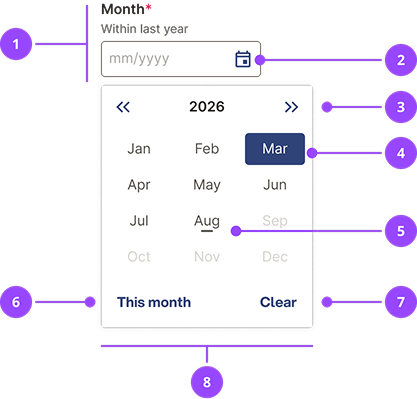
- Field: based on Text Field, contains label, hint text, input, and error state
- Calendar button: opens the calendar popover
- Year controls: moves the year forwards and backwards
- Selected month
- Today's month
- This month button: selects today's month and closes the calendar popover
- Clear button: clears the current entry and closes the calendar popover
- Calendar popover: always a fixed width, always aligned to the left edge of the field
Basic usage
Edit live code
<MonthpickerField
  id="month"
  label="Month"
/>
Validation
MonthpickerField uses the mm/yyyy format. The input is a free-text field, so always validate on submit. Use getMonthpickerDate to parse and validate the string: it returns a Date pinned to the 1st of the selected month, or null if invalid.
Edit live code
() => {

  const Example = () => {
    const [errors, setErrors] = useState([]);

    const onSubmit = (e) => {
      e.preventDefault();
      const newErrors = [];

      const { monthpicker } = Object.fromEntries(new FormData(e.currentTarget));

      const monthpickerDate = getMonthpickerDate(monthpicker)

      if (!monthpickerDate) {
        newErrors.push({ id: 'monthpicker', message: 'Enter a valid month in the format mm/yyyy'});
      }

      setErrors(newErrors);

      if (!newErrors.length) {
        alert('success');
      }
    }

    return (
      <Form errors={errors} onSubmit={onSubmit}>
        <FormFields>
          <MonthpickerField
            id="monthpicker"
            name="monthpicker"
            label="Monthpicker example"
          />
        </FormFields>
        <FormActions>
          <PrimaryCTAButton type="submit">Validate month</PrimaryCTAButton>
        </FormActions>
      </Form>
    );
  }

  return <Example />;
}
Unavailable months
Use isMonthUnavailable to mark months as unavailable in the popover. This does not prevent manual entry, so always validate on submit too.
Edit live code
<MonthpickerField
  id="month"
  label="Month"
  hint="Must be a future month"
  isMonthUnavailable={date => date.getTime() < Date.now()}
/>
Month ranges
Use two Monthpicker Fields side by side. Set months before the start month as unavailable in the end field, and reset the end month when the start changes.
Align the two fields to the bottom of their container so inputs stay aligned when one has hint text or an error.
Edit live code
() => { // ignore - for live code example only.
  const Example = () => {
    const [startMonth, setStartMonth] = useState('');
    const [endMonth, setEndMonth] = useState('');

    const isMonthUnavailable = (date) => {
      if (!startMonth) {
        return false;
      }
      const [m, y] = startMonth.split('/');
      const start = new Date(y + '/' + m + '/01');
      return date.getTime() < start.getTime();
    };

    return (
      <div style={{ display: 'flex', gap: '1.2rem', alignItems: 'flex-end' }}>
        <MonthpickerField
          id="start-month"
          name="start-month"
          label="Start month"
          hint="After this month"
          value={startMonth}
          onChange={value => {
            setStartMonth(value);
            setEndMonth('');
          }}
        />
        <MonthpickerField
          id="end-month"
          name="end-month"
          label="End month"
          value={endMonth}
          onChange={setEndMonth}
          isMonthUnavailable={isMonthUnavailable}
        />
      </div>
    );
  }

  return <Example />;
}
Common form features
Monthpicker Field shares validation, hint text, required/optional marking, error display, and field width behaviour with other form fields. See the forms pattern guide for full guidance.
Content
Labels
Use a noun that describes the month, not a sentence fragment ("Billing month", not "Billing for"). Keep labels to two or three words.
Hints
Use hints to describe a constraint on the month. The field already shows the format as placeholder text, so do not repeat it as a hint.
OverlayProvider
Monthpicker Field uses React Aria. Wrap your app in OverlayProvider so the page behind the calendar popover is hidden from screen readers while it is open.
usage
- MonthpickerField must not be used when the user needs to provide an exact dateUse DatepickerField instead. MonthpickerField captures month and year only; the day is always set to the 1st.Copy rule ID for monthpickerfield.use-for-month-not-date
- MonthpickerField must not be rendered in a disabled stateDisabled fields are invisible to screen readers, cannot be focused, and provide no feedback. Use read-only or hide the field until it is relevant.Copy rule ID for monthpickerfield.no-disabled
- MonthpickerField should not be used when the user is choosing from a small, fixed set of monthsA calendar popover adds interaction cost when there is nothing to browse. Use Select Field or Radio for short, fixed option sets.Copy rule ID for monthpickerfield.no-fixed-set
validation
- MonthpickerField must validate the field value on form submission using getMonthpickerDateThe input is a free-text field. Users can type any string, so client-side validation is required before using the value.Copy rule ID for monthpickerfield.validate-on-submit
- If isMonthUnavailable is providedMonthpickerField must still validate the entered value on submit when isMonthUnavailable is usedisMonthUnavailable disables months in the popover only. It does not prevent a user from typing a restricted month directly into the text input.Copy rule ID for monthpickerfield.unavailable-months-validate
composition
- MonthpickerField must be rendered inside an OverlayProviderOverlayProvider hides the page behind the calendar popover from screen readers. Without it, AT users can read content that is not interactable.Copy rule ID for monthpickerfield.overlay-provider
content
- MonthpickerField should use a noun phrase as the label, not a sentence fragmentSentence fragments ("Billing for") make error messages nonsensical ("Enter a valid billing for"). Noun phrases ("Billing month") work in all contexts.Copy rule ID for monthpickerfield.label-noun
- MonthpickerField should not repeat the mm/yyyy format in hint textThe field already shows the format as placeholder text. Repeating it in the hint adds noise.Copy rule ID for monthpickerfield.no-format-hint
placement
- If two MonthpickerFields are used side by side for a month rangeMonthpickerField should align side-by-side range fields to the bottom of their containerFields with hint text or errors are taller than those without. Bottom alignment keeps the inputs visually aligned when field heights differ.Copy rule ID for monthpickerfield.range-alignment
interaction
- If two MonthpickerFields are used side by side for a month rangeMonthpickerField should reset the end month when the start month changes in a range pairWithout a reset, the end month can be earlier than the start month, putting the user in an unrecoverable state.Copy rule ID for monthpickerfield.range-reset
MonthpickerField
Also accepts all props from HTMLAttributes, InputHTMLAttributes.
| Name | Type | Default | Required | Description |
|---|---|---|---|---|
id | string | — | Yes | Unique id for the input, used to link the label, hint and error to it. Also used as the base for related ids such as `{id}-error`. |
error | ReactNode | — | No | Error message shown below the input. When set, the input gets `aria-invalid` and an error border, and the message is linked to it with `aria-describedby`. Takes precedence over an error provided by a surrounding `Form`. |
label | string | — | Yes | Visible label for the field. It is associated with the input, so it forms the input's accessible name. |
name | string | — | No | The `name` attribute passed to the input. Also used to look up the field's error from a surrounding `Form`. |
hint | ReactNode | — | No | Helper text shown below the label. It is part of the label element, so it is read as part of the input's accessible name. |
optional | boolean | false | No | Marks the field as not required. This appends "(optional)" to the label (or, when the theme marks required fields, hides the required asterisk) and sets `aria-required` on the input only when the field is not optional. |
fullWidth | always never small | 'small' | No | Controls when the field stretches to the full width of its container. `always` is always full width, `never` always uses the width set by `characters`, and `small` is full width on small screens only. |
characters | number | 8 | No | Width of the input, as an approximate number of characters (the width is set to `0.8em` per character, rounded up). Does not limit how much can be typed. |
affixWidth | number | 40 | No | Extra width in pixels added to the width calculated from `characters`, to make room for icons or buttons inside the input. |
iconLeft | IconName | (string & {}) | — | No | Name of an icon to show inside the left of the input. The input padding increases to make room for it. |
iconRight | IconName | (string & {}) | — | No | Name of an icon to show inside the right of the input. The input padding increases to make room for it. |
onChange | (value: string) => void | — | No | Called with the new text when the user types (exactly as typed, not validated or reformatted) or picks a month from the picker (formatted `mm/yyyy`), and with an empty string when the month is cleared from the picker. |
defaultValue | string | — | No | Initial text of the input when uncontrolled, in `mm/yyyy` format. |
defaultOpen | boolean | — | No | Whether the month picker popover is open when first rendered. |
isMonthUnavailable | IsMonthUnavailable | — | No | Called for each month in the picker. Return `true` to make that month unavailable so it cannot be selected in the picker. It does not stop a month being typed into the input. |
This component has no styles of its own to document.
In brief
Monthpicker Field is a text input for typing a month as mm/yyyy, with a calendar button that opens a grid of twelve months in a dialog. A screen reader announces the label, then a text field, and the button is a separate stop that opens the picker.
What Nebula provides
- A real label linked to the text input, aria-required unless the field is optional, and an error linked with aria-invalid and aria-describedby.
- A calendar button with aria-haspopup="dialog" and aria-expanded, built on React Aria.
- A dialog that keeps focus inside while it is open, returns focus when it closes, closes with Esc or a click outside, and has a hidden dismiss button for screen reader users.
- A grid of months, each named with its month and year (for example "January 2024"), with the selected month marked. Months marked unavailable are dimmed and cannot be selected in the picker.
Keyboard behaviour
The input and then the calendar button are tab stops. In the picker, focus lands on the selected month, or the current one, and only that month is a tab stop; the arrow keys move between months, Home and End go to January and December, Enter or Space selects a month and Esc closes it.
Focus order
- The month input
- The calendar button
- Inside the open picker: the year buttons, the month grid, then This month and Clear
Interactions
- Tab - Moves focus to the input, then to the calendar button
- Enter or Space - Opens the picker from the calendar button
Accessible design
Always put the month format in the hint, not only in the placeholder
The placeholder (mm/yyyy) disappears as soon as the user types and is shown at half opacity, so a user who is partway through a month loses the format. Write it in the hint, for example "For example, 02/2024".
WCAG: 3.3.2 Labels or Instructions
If some months are unavailable, say which in the hint
The picker only dims them, and a user who types a month is not stopped. A short hint such as "Within the last 12 months" tells every user the rule before they choose.
WCAG: 3.3.2 Labels or Instructions
Accessible development
Always validate the typed text on submit, and say what is wrong
The input accepts any text and isMonthUnavailable does not apply to it. Check it with getMonthpickerDate and show an error that names the format or the rule it broke.
WCAG: 3.3.1 Error Identification 3.3.3 Error Suggestion
Always pass errors through error, or through a Form with the field name
This is what sets aria-invalid and links the message to the input. Text placed beside the field is not announced with it.
WCAG: 3.3.1 Error Identification
Accessibility testing status
Reviewed on 9 October 2026 against v17.0.1.
| Test | Status | Tested with |
|---|---|---|
| Default state | Tested | axe-core via the Storybook test runner (CI) |
| Advanced states | Partially tested | axe-core via the Storybook test runner (CI) |
| Keyboard navigation | Partially tested | keyboard (reported by the owner) |
| Screen reader | Partially tested | VoiceOver with Chrome (reported by the owner) |
What these tests and statuses mean
The table records which checks were run on this component on its own. It is not a statement of WCAG conformance, and it does not cover how the component is used.
The tests
- Default state: The component as it first appears, before anything is clicked or changed.
- Advanced states: Every other state and variant: error, open, selected, each size and style, and hovering.
- Keyboard navigation: Whether every function can be reached and used with the keyboard alone, with a visible focus ring.
- Screen reader: Whether a screen reader announces what is on screen correctly: the name, the role and any state.
The statuses
- Tested: Every check in this row passed in an automated run that repeats on every pull request.
- Manually tested: Every check in this row was run once, by a person or with a tool they started, and all of them passed. It is not re-run on every change.
- Partially tested: Some checks in this row were run once and passed; the rest are still to do.
- Issue found: A check in this row failed. The ticket is shown beside the status.
- Not tested: No check in this row has been run yet.
- Not applicable: This row does not apply to the component, for the reason given beside it.