On this page
Combobox Field
A searchable multi-select field for choosing one or more options from a long list.
- Overview
- Rules and guidance
- Properties
- Styles
- Accessibility
When to use
- When the list has more than around 15 options and users need to search to narrow it down
- When users need to select multiple items from a large set of options
- When the list is too long to scan comfortably, making a grouped or searchable dropdown more useful than a static list
When not to use
- Five or fewer options - use Radio for single selection or Checkbox for multiple selection. Static controls are easier to scan and require less interaction.
- Single selection from a short, flat list - use Select Field. It is simpler and more familiar for straightforward choices.
- All options are short and equally scannable - use Select Field. Search adds friction when users can find the right option by reading the list directly.
- To indicate that a field is unavailable - the disabled state is not supported. Use Summary List to show values that cannot be edited, or conditionally hide the field if it is not relevant in the current context.
Anatomy
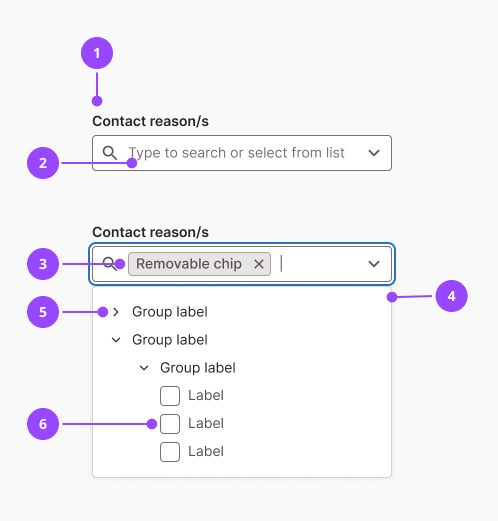
- Label
- Hint text (optional)
- Search icon
- Selected chips
- Input
- Chevron
- Dropdown
- Option group (optional)
- Option
- Error text (optional)
Basic usage
Edit live code
<ComboboxField
  id="fruits"
  label="Select your favourite fruits"
  multiple
  options={[
    { label: 'Apple', value: 'apple' },
    { label: 'Banana', value: 'banana' },
    { label: 'Cherry', value: 'cherry' },
    { label: 'Mango', value: 'mango' },
    { label: 'Orange', value: 'orange' },
  ]}
/>
Variants and features
Option groups
Options can be grouped under collapsible headings by nesting an options array inside a parent option object. Groups are collapsed by default and expand on click or keyboard activation. When the user types a search query, all matching options become visible regardless of which groups are expanded.
Avoid groups that contain only one option. Groups are only worthwhile when they help users orient themselves within a large list. Give groups concise, specific names rather than catch-all labels like "Other".
Edit live code
<ComboboxField
  id="energy"
  label="Select energy sources"
  multiple
  options={[
    {
      label: 'Electricity',
      value: 'electricity',
      options: [
        { label: 'Solar', value: 'solar' },
        { label: 'Wind', value: 'wind' },
        { label: 'Hydro', value: 'hydro' },
        { label: 'Geothermal', value: 'geothermal' },
      ],
    },
    {
      label: 'Gas',
      value: 'gas',
      options: [
        { label: 'Biomethane', value: 'biomethane' },
        { label: 'Hydrogen blend', value: 'hydrogen-blend' },
      ],
    },
  ]}
/>
Controlled and uncontrolled
ComboboxField can be used as either a controlled or uncontrolled component. Pass value and onValueChange together for controlled usage. Use defaultValue alone for uncontrolled usage where you only need to read the final selection on submit.
Controlled, with value and onValueChange:
Edit live code
() => { // ignore - for live code example only.
  const Example = () => {
    const [fruit, setFruit] = useState('banana');

    return (
      <Stack spaceBetween={3}>
        <ComboboxField
          id="favourite-fruit-controlled"
          label="Select your favourite fruit"
          value={fruit}
          onValueChange={setFruit}
          options={[
            { label: 'Apple', value: 'apple' },
            { label: 'Banana', value: 'banana' },
            { label: 'Cherry', value: 'cherry' },
            { label: 'Mango', value: 'mango' },
            { label: 'Orange', value: 'orange' },
          ]}
        />
        <P>Current value: {fruit || 'none'}</P>
      </Stack>
    );
  }

  return <Example />;
}
Uncontrolled, with defaultValue:
Edit live code
<ComboboxField
  id="favourite-fruit-uncontrolled"
  label="Select your favourite fruit"
  defaultValue="cherry"
  options={[
    { label: 'Apple', value: 'apple' },
    { label: 'Banana', value: 'banana' },
    { label: 'Cherry', value: 'cherry' },
    { label: 'Mango', value: 'mango' },
    { label: 'Orange', value: 'orange' },
  ]}
/>
Common form features
ComboboxField shares validation, hint text, required/optional marking, and field width behaviour with other form fields. See the forms pattern guide for guidance on these topics.
usage
- ComboboxField must always set the multiple prop to trueThe component is designed for multi-select only. The prop is required in the type signature.Copy rule ID for comboboxfield.multiple-required
- ComboboxField must always receive a non-empty options arrayAn empty options list renders a dropdown with no choices, giving users no way to make a selection.Copy rule ID for comboboxfield.options-required
- ComboboxField must provide both value and onValueChange when used as a controlled componentProviding value without onValueChange creates a read-only field with no way to update selection.Copy rule ID for comboboxfield.controlled-pair
- ComboboxField must not be passed the disabled propThe prop passes through to the native input with no Nebula styling and removes the field from the tab order, making it invisible to keyboard users with no accessible indication of why.Copy rule ID for comboboxfield.no-disabled
- ComboboxField should only be used when the option list has more than around 15 items, or when multiple selection is neededFor shorter lists, Select Field or Radio/Checkbox are simpler and easier to use.Copy rule ID for comboboxfield.large-option-sets
- ComboboxField should be replaced with plain text. For example in a SummaryList. When displaying a value the user cannot editA field that looks interactive but cannot be changed is confusing. Plain text communicates the value without implying editability.Copy rule ID for comboboxfield.non-editable-as-text
- ComboboxField should not be used when the option list has five or fewer itemsStatic controls such as Radio and Checkbox are faster to scan and require less interaction for short lists.Copy rule ID for comboboxfield.not-for-small-sets
placement
- Dropdown will open below the input by default, and switch to above when there is insufficient space belowCopy rule ID for comboboxfield.dropdown-placement
content
- Option label must use sentence caseCopy rule ID for comboboxfield.option.label-sentence-case
- Option value must be unique across the entire options list, including across groupsDuplicate values cause incorrect selection state.Copy rule ID for comboboxfield.option.unique-values
- Option group label must use sentence caseCopy rule ID for comboboxfield.group.sentence-case
- Option label must not repeat the group name in the option labelThe group header already provides this context, so repeating it is redundant.Copy rule ID for comboboxfield.option.label-no-group-repeat
- Option label should be five words or fewerLong option labels are harder to scan and may be truncated inside chips.Copy rule ID for comboboxfield.option.label-concise
- Option group label should not use generic names such as "Other" or "Miscellaneous"Generic group names do not help users find the option they are looking for.Copy rule ID for comboboxfield.group.specific-names
interaction
- ComboboxField will receive focus on the search input when Tab is pressedCopy rule ID for comboboxfield.keyboard.tab-focuses-input
- ComboboxField will open the dropdown when ArrowDown is pressed from the inputCopy rule ID for comboboxfield.keyboard.arrow-down-opens
- ComboboxField will move focus into the dropdown option list when ArrowDown is pressed while the dropdown is already openCopy rule ID for comboboxfield.keyboard.arrow-down-navigates
- ComboboxField will close the dropdown when Escape is pressedCopy rule ID for comboboxfield.keyboard.escape-closes
- ComboboxField will remove the last selected chip when Backspace is pressed in an empty inputCopy rule ID for comboboxfield.keyboard.backspace-removes
- ComboboxField will move focus to the last selected chip when ArrowLeft is pressed at the start of the inputCopy rule ID for comboboxfield.keyboard.arrow-left-chips
- Selected chip will be removable with Backspace, Delete, or Enter when focusedCopy rule ID for comboboxfield.keyboard.chip-remove
- Selected chips will be navigable using ArrowLeft and ArrowRight, returning focus to the input from the last chipCopy rule ID for comboboxfield.keyboard.chip-arrow-nav
- Dropdown options will be navigable using ArrowUp and ArrowDown, with ArrowUp from the first option returning focus to the inputCopy rule ID for comboboxfield.keyboard.dropdown-arrow-nav
- Dropdown options will jump to the first option on Home and the last option on EndCopy rule ID for comboboxfield.keyboard.dropdown-home-end
- ComboboxField will redirect printable character key presses from the dropdown to the search input, appending the typed characterCopy rule ID for comboboxfield.keyboard.type-to-search
- ComboboxField will display a "No results found" message when the search query matches no optionsAn empty dropdown with no explanation is confusing and looks like a loading failure.Copy rule ID for comboboxfield.no-results-message
- ComboboxField will announce the number of available results to screen readers when the dropdown opens or the option count changesCopy rule ID for comboboxfield.live-region
grouping
- Option group should contain at least two optionsA group with a single option adds a heading without the benefit of grouping.Copy rule ID for comboboxfield.group.min-two-options
composition
- ComboboxField will render a hidden input for each selected value when the name prop is provided, to support native form submissionCopy rule ID for comboboxfield.hidden-inputs
- Selected chip will truncate long option labels within the input wrapper rather than overflowing past the chevronCopy rule ID for comboboxfield.chip-truncation
ComboboxField
| Name | Type | Default | Required | Description |
|---|---|---|---|---|
id | string | — | Yes | Unique id for the input, used to link the label, hint and error to it. Also used as the base for related ids such as `{id}-error`. |
error | ReactNode | — | No | Error message shown below the input. When set, the input gets `aria-invalid` and an error border, and the message is linked to it with `aria-describedby`. Takes precedence over an error provided by a surrounding `Form`. |
label | string | — | Yes | Visible label for the field. It is associated with the input, so it forms the input's accessible name. |
name | string | — | No | The `name` attribute passed to the input. Also used to look up the field's error from a surrounding `Form`. Name for the combobox. In `ComboboxField` it is also used to look up the field error from a surrounding `Form`. |
hint | ReactNode | — | No | Helper text shown below the label. It is part of the label element, so it is read as part of the input's accessible name. |
optional | boolean | false | No | Marks the field as not required. This appends "(optional)" to the label (or, when the theme marks required fields, hides the required asterisk) and sets `aria-required` on the input only when the field is not optional. |
fullWidth | always never small | 'small' | No | Controls when the field stretches to the full width of its container. `always` is always full width, `never` always uses the width set by `characters`, and `small` is full width on small screens only. |
characters | number | 25 | No | Width of the input, as an approximate number of characters (the width is set to `0.8em` per character, rounded up). Does not limit how much can be typed. |
affixWidth | number | 0 | No | Extra width in pixels added to the width calculated from `characters`, to make room for icons or buttons inside the input. |
options | Option[] | — | Yes | Options to choose from, each with a `label` and `value`. An option can contain its own `options` to form a collapsible group. Typing in the input filters options by label. |
multiple | true | false | false | No | Allows more than one option to be selected. Selected options are shown as removable chips, and `value`, `defaultValue` and `onValueChange` use arrays of option values. |
value | string[] | string | null | — | No | Controlled selected option values. Use together with `onValueChange`. |
defaultValue | string[] | string | — | No | Initially selected option values when uncontrolled. Values that do not match an option are ignored. |
onValueChange | (newValue: string[]) => void | (newValue: string | null) => void | — | No | Called with the array of selected option values whenever the selection changes. |
This component has no styles of its own to document.
In brief
Combobox Field is a text input with the role combobox that opens a list of options, single or multiple, which can be nested in groups. Moving into the list moves real focus onto the options, so its keyboard model is Nebula's own and not the browser's.
What Nebula provides
- A real label linked to the input, aria-required unless the field is optional, and an error linked with aria-invalid and aria-describedby.
- The input has aria-expanded, aria-haspopup="listbox", aria-controls and aria-autocomplete="list". Options have aria-selected, and a multiple list is marked multiselectable.
- A live region announces how many results are available as the list opens and is filtered, or that there are none.
- Each chip's remove button is named with the option label followed by "press to remove" (see Chip).
Keyboard behaviour
The input is the only tab stop; the list, the options and the chips are reached with the arrow keys. Arrow Down opens the list and then moves focus into it, Arrow Up, Arrow Down, Home and End move between options, Enter selects an option or opens or closes a group, and Esc closes the list. In a multiple field, Arrow Left at the start of the input moves to the chips, Backspace there removes the last chip, Arrow Left and Arrow Right move between chips and back to the input, and Backspace, Delete or Enter on a chip removes it.
Interactions
- Tab - Moves focus to the input
Accessible design
Never rely on the placeholder to name the field
The field shows the fixed prompt "Type to search or select from list" while nothing is selected, and it is shown at half opacity. It is a prompt, not a label: write a label that names what the user is choosing.
WCAG: 3.3.2 Labels or Instructions
Write group names that make sense on their own
A group header is announced as an option, by its label alone, so the name has to say what is inside the group without the options beside it.
WCAG: 2.4.6 Headings and Labels
Accessible development
Always pass errors through error, or through a Form with the field name
This is what sets aria-invalid and links the message to the input. Text placed beside the field is not announced with it.
WCAG: 3.3.1 Error Identification
If a selection changes content elsewhere on the page, announce the change
The component only announces how many results are available. Tell the user, through a status message, when choosing an option updates a list, a total or a form section, because focus stays in the field.
WCAG: 4.1.3 Status Messages
Accessibility testing status
Reviewed on 9 October 2026 against v17.0.1.
| Test | Status | Tested with |
|---|---|---|
| Default state | Tested | axe-core via the Storybook test runner (CI) |
| Advanced states | Partially tested | axe-core via the Storybook test runner (CI) |
| Keyboard navigation | Partially tested | keyboard (reported by the owner) |
| Screen reader | Partially tested | VoiceOver with Chrome (reported by the owner) |
What these tests and statuses mean
The table records which checks were run on this component on its own. It is not a statement of WCAG conformance, and it does not cover how the component is used.
The tests
- Default state: The component as it first appears, before anything is clicked or changed.
- Advanced states: Every other state and variant: error, open, selected, each size and style, and hovering.
- Keyboard navigation: Whether every function can be reached and used with the keyboard alone, with a visible focus ring.
- Screen reader: Whether a screen reader announces what is on screen correctly: the name, the role and any state.
The statuses
- Tested: Every check in this row passed in an automated run that repeats on every pull request.
- Manually tested: Every check in this row was run once, by a person or with a tool they started, and all of them passed. It is not re-run on every change.
- Partially tested: Some checks in this row were run once and passed; the rest are still to do.
- Issue found: A check in this row failed. The ticket is shown beside the status.
- Not tested: No check in this row has been run yet.
- Not applicable: This row does not apply to the component, for the reason given beside it.