On this page
Permission restrictions
Help users understand what they can see, what they can do, and where something is unavailable to them.
Overview
Restrictions appear in three scenarios: a whole page the user cannot access, a data item within a page they can otherwise see, or an action they are not allowed to perform. Each has the same underlying challenge: helping users understand a restriction without exposing information they should not see.
This pattern covers how a restriction is presented. It does not cover how permissions are granted, or any access escalation process.
The core decision
What to show depends on whether the user needs to know the restricted thing exists.
- Where they don't, hide it. Remove it from navigation, omit it from the page, and do not render the action trigger.
- Where they do, show something to indicate the restriction. Where users are likely to keep searching for a restricted item, make the restriction visible even though the content itself stays hidden.
Principles
Apply restrictions on page load
Restrictions must be in place before any content is rendered. Data must not appear or flicker before a restriction takes effect. Even a brief flash is a data protection issue.
Restrict early in flows
If a flow requires a permission the user does not have, surface that before step one rather than letting someone progress through several steps only to hit a restriction at the end. If only one step or branch needs the permission and the rest of the flow can continue without it, restrict just that step.
Make visible restrictions clearly visible
Where users can see that something is restricted, show it plainly on the page. Do not put restriction information behind a hover state or a tooltip. Someone who needs to act on a restriction should be able to see it without effort.
Provide a path to access where possible
Aim to give users a way to request access, or to find out who can grant it. A link, a team name, or an instruction, whatever is realistic in context. A restriction the user can do nothing about is a dead end.
Scenarios
The examples below use a reference page to illustrate each scenario. The page itself is for demonstration only.
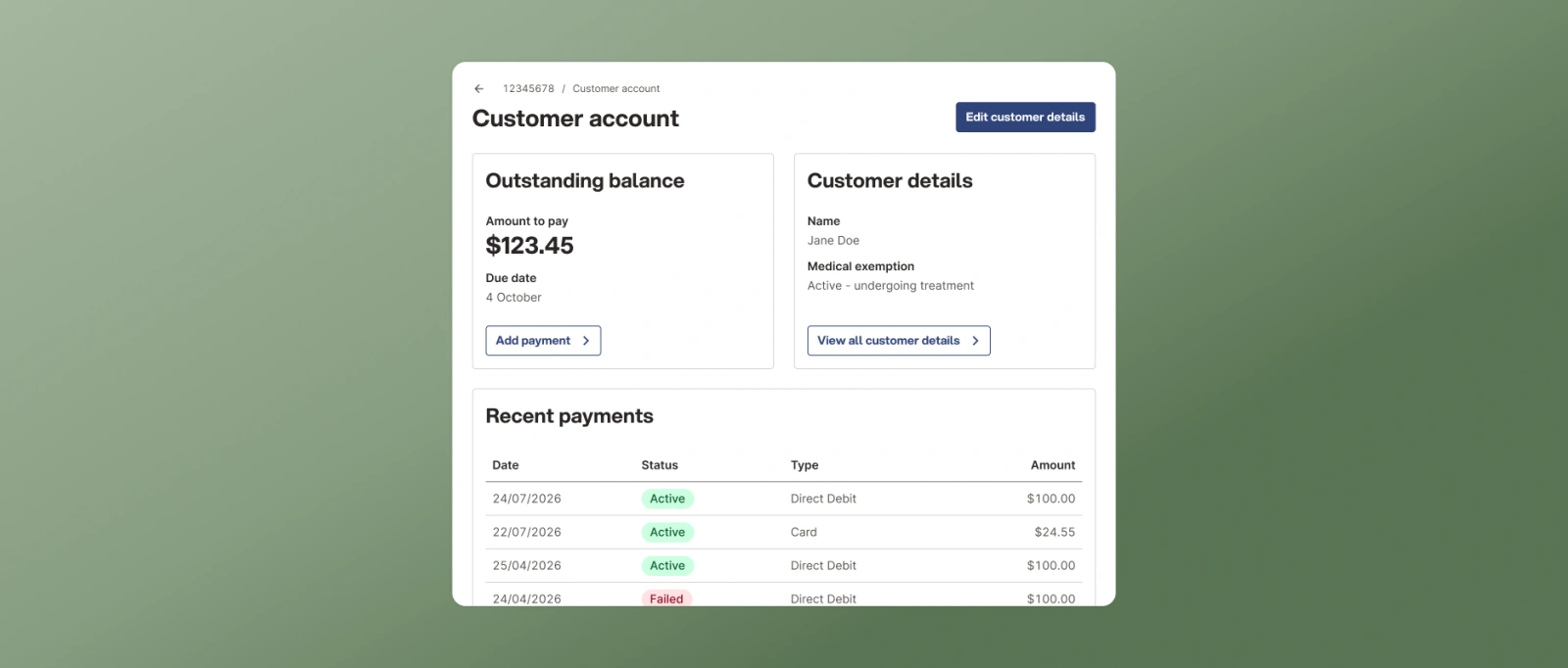
Whole pages
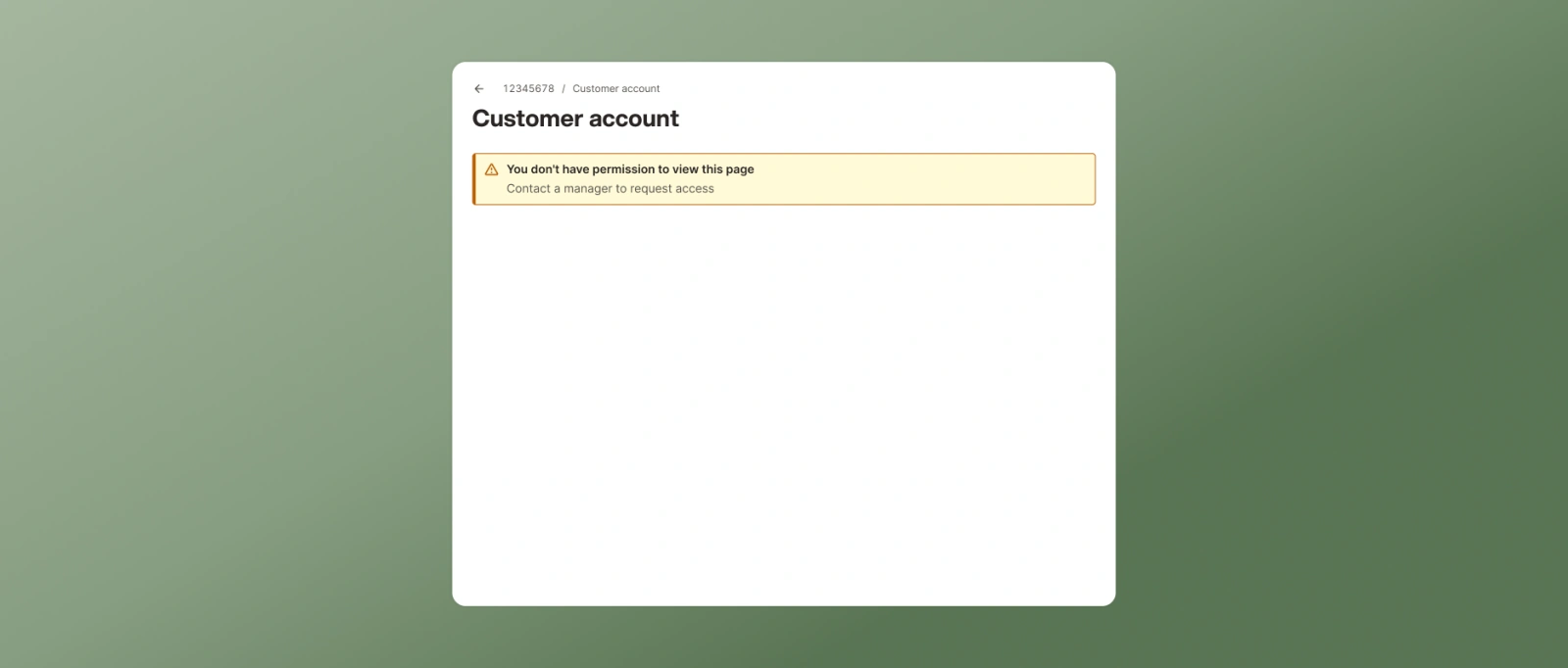
Use when an entire page is inaccessible.
- If the user does not need to know the page exists, remove it from navigation and remove any links to it from other pages.
- If the user must know it exists, keep the navigation items and links visible.
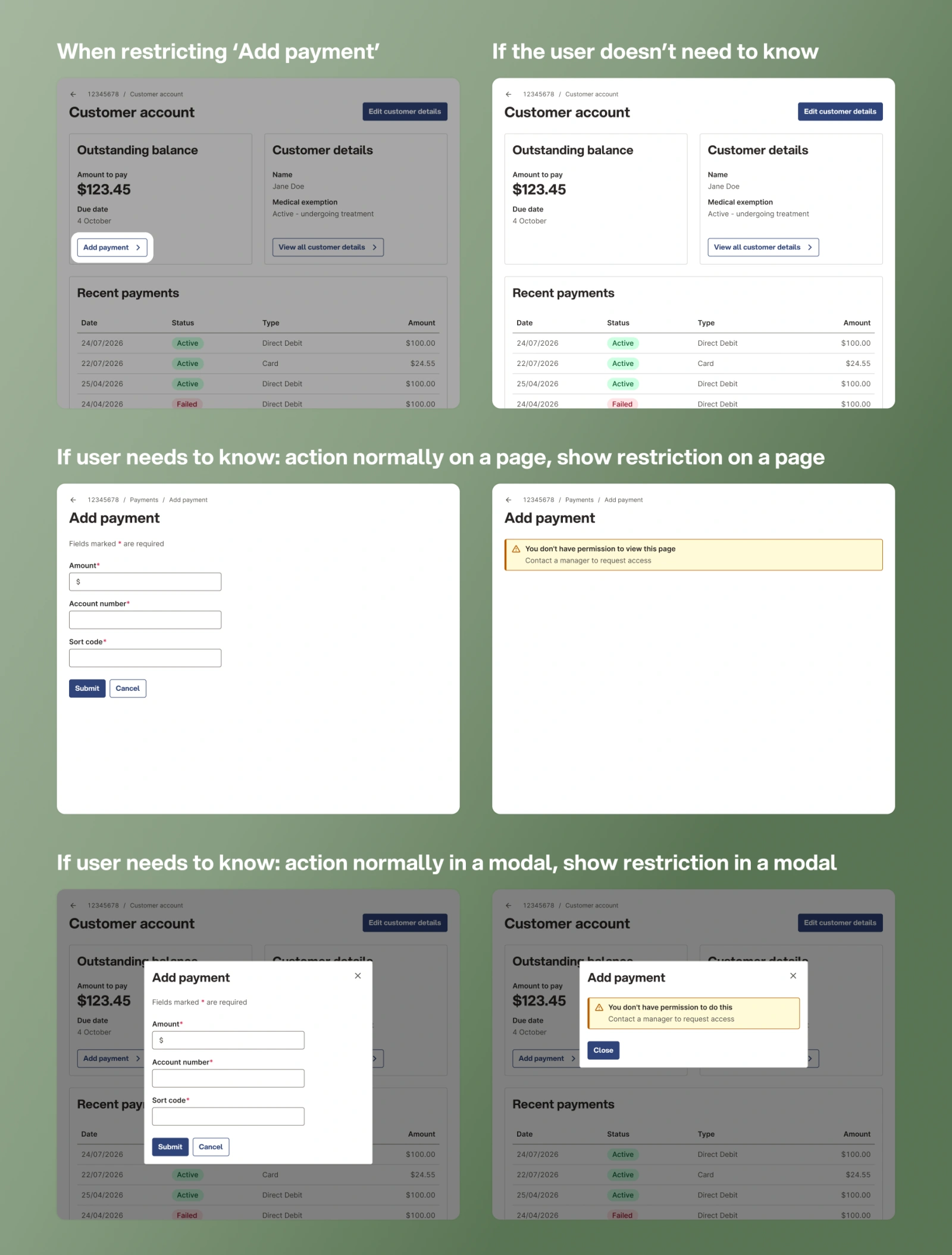
Build a restricted-page state in both cases, using a Notification with variant="warning". Users may have bookmarked the page or followed a shared link, whether or not it appears in their navigation.
Information on a page
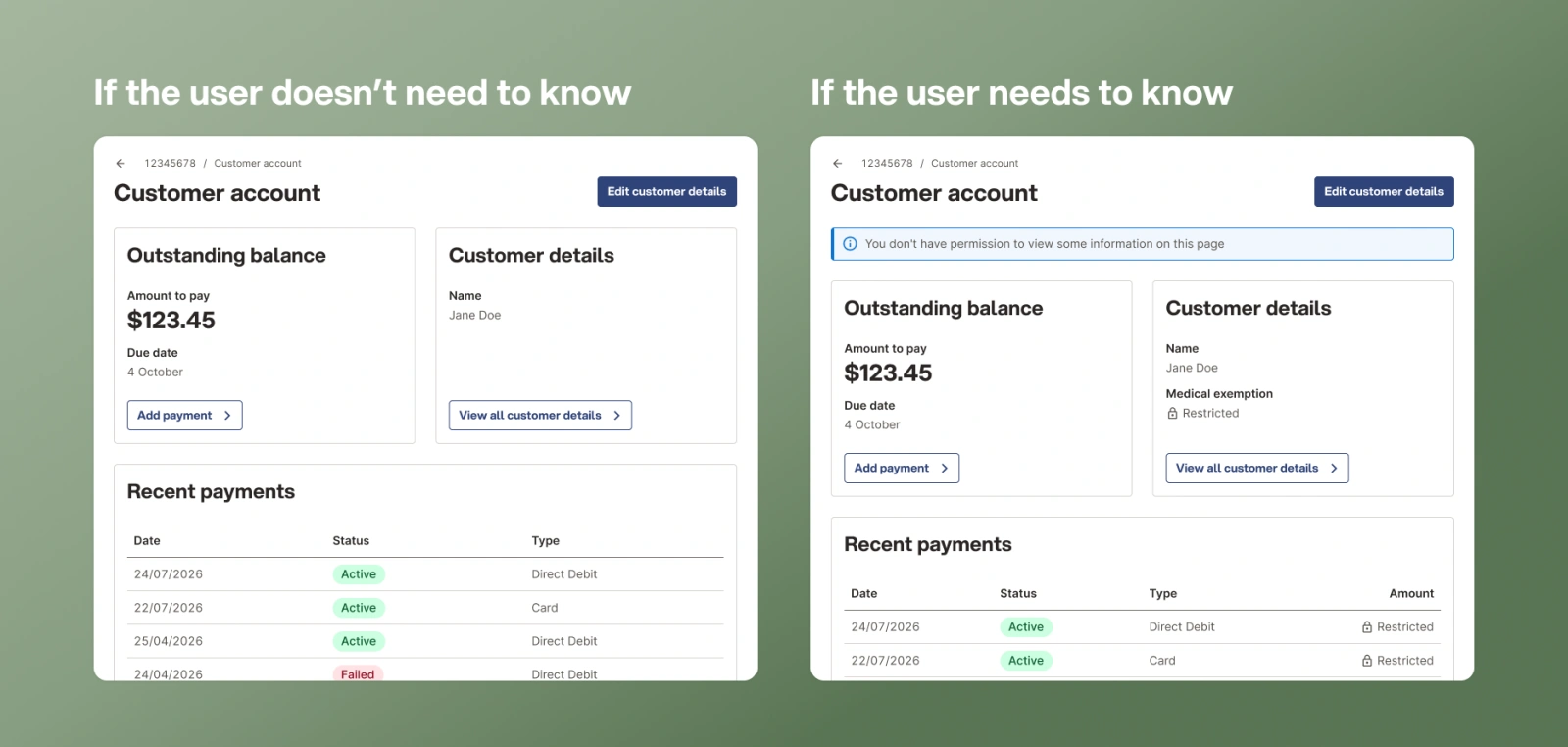
Use when specific data on an otherwise accessible page is restricted.
- If the user does not need to know the information exists, omit it entirely.
- If the user must know, replace the value with a 16px lock icon and the word 'Restricted', which reads differently from an empty field or a 'no data' state.
- If more than one item on the page is restricted, explain the group once with a single Notification using variant="info". Do not repeat a restriction message against every item.
Where access can be requested, put a brief instruction or contact detail in the notification rather than against each value.
Edit live code
() => {
  // ignore - for live code example only.
  const Restricted = () => (
    <span style={{ display: 'inline-flex', alignItems: 'center', gap: '0.375em' }}>
      <Icon name="lock" size={16} />
      Restricted
    </span>
  );

  return (
    <SummaryList>
      <SummaryItem label="Name">Jane Doe</SummaryItem>
      <SummaryItem label="Medical exemption">
        <Restricted />
      </SummaryItem>
      <SummaryItem label="Payment history">
        <Restricted />
      </SummaryItem>
    </SummaryList>
  );
}
Read-only pages
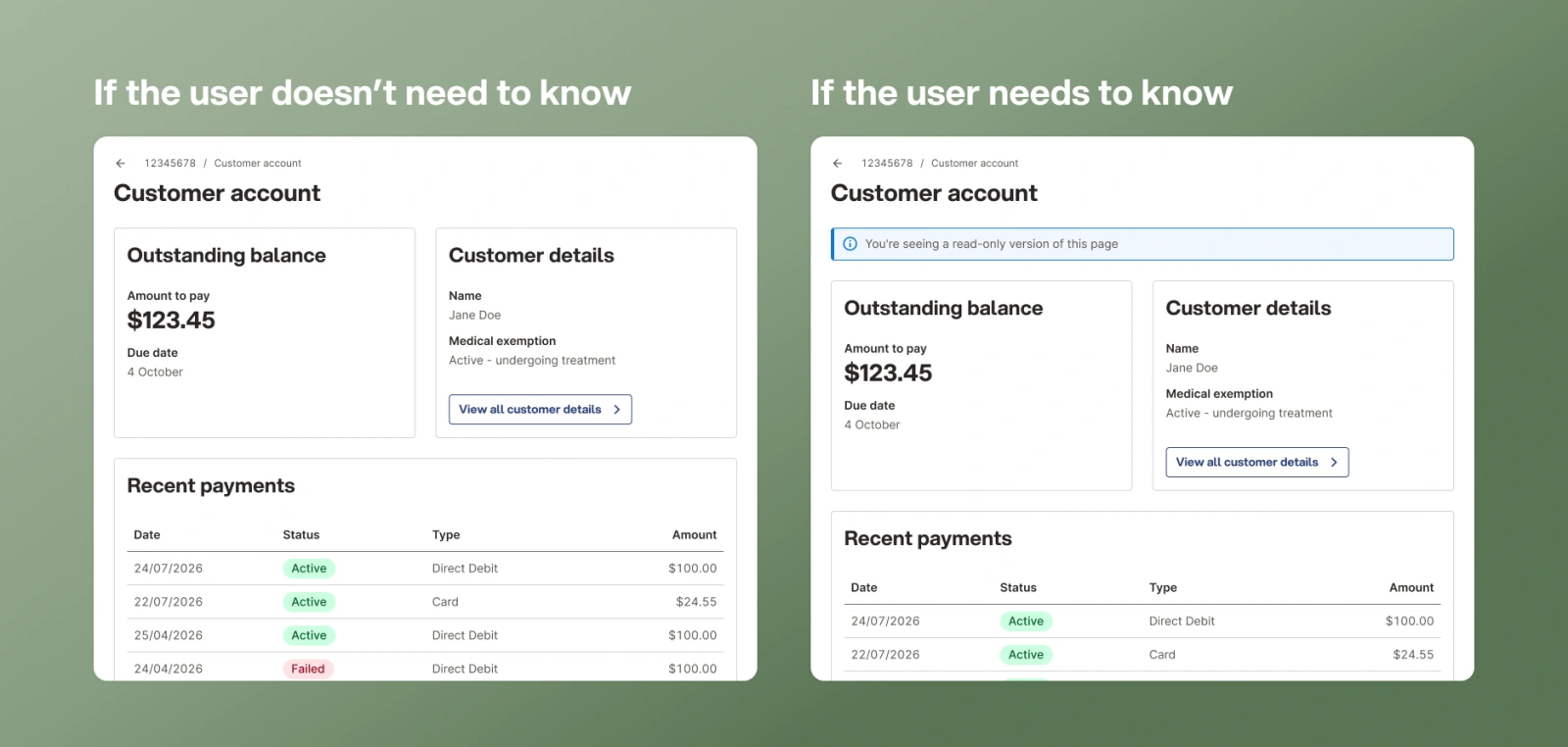
Use when every action on a page is unavailable. This is the individual actions scenario below, applied when no action is available rather than only some.
- If the user does not need to know they are in read-only mode, hide all action triggers.
- If they need to know, hide all action triggers and add a Notification with variant="info" explaining that the page is read-only.
Individual actions
Use when a user can reach a page but cannot perform one or more actions on it.
- If the user does not need to know an action exists, do not render its trigger.
- If the user must know an action is restricted, render the trigger and show the restriction where the action would normally happen. If activating the trigger would normally open a Modal, open the modal and explain the restriction inside it. If it would normally navigate to a page, show the restriction on that page.
Surfacing the restriction in the place the action would have happened keeps the explanation where the user is looking, rather than making them hunt for why nothing happened.
CTA Button has no disabled state, and a custom greyed-out button is not a substitute. It does not communicate why the action is unavailable, and it is skipped or unreadable for many users. See Disabled states in the Forms pattern.
Accessibility
- Apply restrictions before render. Never remove content from the DOM after it has been displayed. Use server-side or early-load checks so restricted content never reaches the browser at all.
- Hide restricted content from assistive technology too. When content is omitted, make sure it is not merely hidden visually. It must be absent for screen reader users as well.
- Announce restrictions that appear dynamically. If a restriction notification appears in response to a user action, move focus to it or render it in an ARIA live region, or it will go unnoticed.
- Let the visible text carry the meaning. Icon renders aria-hidden="true", so the lock is decorative and the adjacent "Restricted" text is what screen reader users hear. Do not use the lock icon on its own, and do not label the icon, which would duplicate the text.
- Return focus after a modal. Where a restriction is surfaced in a modal, follow the usual Modal focus behaviour: focus moves into the modal on open and returns to the trigger on close.
Copy guidance
Be direct and specific. Say what the user cannot access and, where possible, name the route to getting access.
Do
This information is restricted. Contact [team name] to request access.
Don't
You do not have permission to view this.
See Error messages for writing system messages more generally.